Blog

  • The Bluffers Guide to apt-X

    My recent review of the Creative ZiiSound D5 mentioned its apt-X credentials. However, I had no idea what apt-X was, so I’ve taken a look into it.

    To manage the transfer of stereo audio, the Bluetooth Special Interest Group (SIG) ratified a system known as A2DP (Advanced Audio Distribution Profile). Now, Bluetooth stipulates the maximum available bandwidth for A2DP is 768kbps. So for high quality stereo music, it is necessary to use some form of audio coding to reduce the required data rates. This is where apt-X comes in.

    Originally developed for use in the professional audio and broadcasting sectors, apt-X is a real-time digital audio data reduction system that compresses audio by a factor of 4:1 with no perceptible audible degradation and with negligible delay.

    apt-X, though, is not just about compressing audio for Bluetooth purposes – it’s used for all sorts of hardware and software implementations, with different versions available for different tasks. For example, there is a lossless (where compression may occur but no data is lost) version of apt-X, as well as a hybrid-version which is “near lossless” and apt-X Live for digital wireless microphones.

    The apt-X codec is handled by its parent company APTX who licence its use.

    I have to say, the more I’ve read about apt-X, the more impressed I’ve been. It’s very easy with a new product to be blinded with lots of trademarked names and abbreviations without knowing exactly what they do and how important they are. From what I’ve read, certainly when it comes to Bluetooth audio, apt-X appears to be a must have.
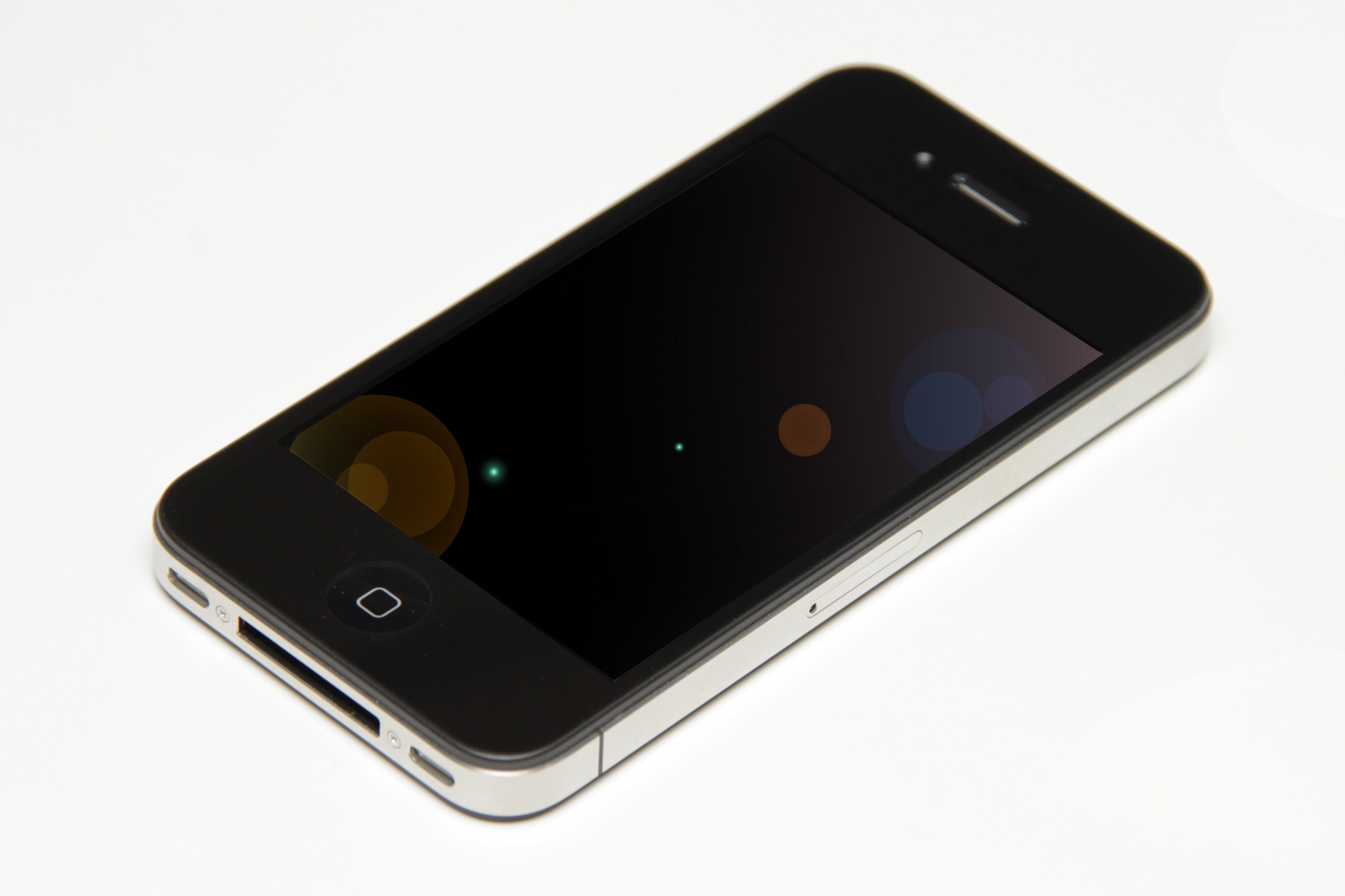
  • The iPhone 4

    The iPhone 4

    I wasn’t going to blog about the iPhone announcement as, well, it didn’t really interest me. About the only feature that I think is ahead of other manufacturers is the high resolution screen – not much higher than the latest HTCs, though, and not AMOLED, but none-the-less impressive.

    (more…)

  • How to Screen Capture on an Android Phone

    Normally, screen capture is only available if you root your phone because of the security restrictions that Android otherwise imposes.

    However, using the Android SDK, there is an alternative method.

    1. On your phone go to Settings -> Applications -> Development and then switch on USB Debugging
    2. Download the Android-SDK pack to your computer and unzip it
    3. Connect your phone to your computer using USB.
    4. Open the folder in the SDK pack called tools.
    5. Double click ddms.
    6. After a brief pause a window should appear named “Dalvik Debug Monitor”.
    7. The window is divided into 3 distinct sections – in the top left hand section, under the heading “Name” your phone should be listed. Highlight it.
    8. Press CTRL and S to launch the screen capture screen.  Buttons on screen allow you to refresh the image, save, etc. This screen (once you press refresh) should show the current contents of your Android screen.

    Thanks to NerdGirl for the info, which I’ve updated (for example, because I found you didn’t have to activate the sync option for it to work).

  • Adding a Heat Map to WordPress

    ClickHeat Screenshot

    Wanting to learn a bit more about the visitors to this site, I thought installing a heat map on the site would be a good start.

    I initially used PicNet Mouse Eye Tracking – this is free, but an advert for the service appears at the foot of your site. However, I soon came across the OpenSource ClickHeat. You can use this on any kind of site and is a PHP-based installation.

    After much gnashing of teeth, here’s how I got it installed…

    • Download the latest version of ClickHeat and unzip it
    • Install this into a folder on your server
    • Now, from the address bar of your browser, open up the folder. e.g. If you installed it to www.mysite.com/clickheat, you’d go to this directory in your address bar.
    • This will start the installer. I found errors straight away – make sure the config, log and cache folders are writeable.
    • Done. You simply need to add the code to start tracking – return to the ClickHeat folder to access your heat map and make settings changes.

    To test it’s working, simply append ?debugclickheat to the end of any of your sites URLs.

    I added the JavaScript (which is generated from the ClickHeat admin screen) directly to my footer.php file in the theme folder, wrapping it in a check to ensure that an admin isn’t signed in (so it doesn’t track my clicking!).

    One more problem I cam across – in the ClickHeat admin screens I kept getting the following error…

    Warning: ob_start() [ref.outcontrol]: output handler 'ob_gzhandler' cannot be used twice in /xxx/clickheat/index.php  on line 51

    Obviously, I’ve replaced the directory path with “xxx” for security reasons.

    After some searching around, I decided the best solution was to make a modification to the ClickHeat code itself. Open up the index.php file within the ClickHeat folder and attempt to find the line that starts with the following…

    if (@ini_get('zlib.output_compression')

    Before this line, add the following…

    ob_end_clean();

    And that’s worked for me.

    I’ll report back on how I get on with ClickHeat.

  • WordPress – Making Post/Page Content Expire

    WordPress – Making Post/Page Content Expire

    There are some excellent plugins available to allow you to make time sensitive posts and pages expire. However, these work for the entire post/page rather than just a section.

    Here’s the simple solution – a shortcode that you wrap around some content and allows you to specify a date on which it should expiry and simply not display anymore.

    (more…)