Blog

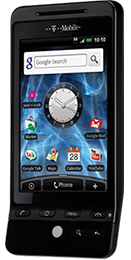
  • The T-Mobile G2 Touch finally gets Eclair!

    Today, T-Mobile finally announced that Android 2.1 (Eclair) was available for G2 Touch (AKA HTC Hero) owners.

    If you’ve not received your “pre-upgrade” update already, you’ll need to do this – it makes various small changes in readiness for the Eclair update.

    To get this, wind your clock on by a month and switch off wi-fi (it needs the data connection for the upgrade to be detected). It only takes a couple of minutes and doesn’t cause any data loss.

    Once you have that, you can either wait for Eclair to be pushed out to your phone or go and get it manually. To do the latter, go into Menu -> Settings -> About Phone and you should now have an option to check for software updates. Go into this and follow all prompts.

    Now, the Android update can cause data lose, although I found it to be minimal. I’d recommend backing up all your data – I used MyBackup Pro to backup all data and applications to my SD card, which I then copied into my Netbook.

    The update takes a few minutes and, even when it appears to have rebooted, you might find that behind your lock screen is an HTC update running. Once this is done I found my date and time was incorrect and that my home screens had been reset – if you saved your layout as a “Theme” (which I hadn’t done) then I’m guessing you can easily restore it.

    And that’s it.

    From what I can tell the visible changes are minimal (even more so – animations are turned off by default, so you’ll need to switch them on for the full impact) – the main change is the improvement in speed. And, boy, is it noticeable.

    Other than that, the biggest change to users will be the apps in the Marketplace that will now be available – Google Earth, IMDB, Google Goggles, Talk To Me, amongst many others.

    Smaller changes include an improved Gmail App, a new pinch feature for viewing all the home screens and a Desk Clock app.
  • Removing “My Bluetooth Places” desktop icon

    Having just installed some new Bluetooth software, I was left with a “My Bluetooth Places” icon on my desktop. And you can’t delete it as you would with other icons.

    But there are two methods of getting rid of it (these apply to Windows XP)…

    1. Use Tweak UI – under the “Desktop” you can untick the “My Bluetooth Places” icon.
    2. Use the “Clean Desktop” option…
    • Right click on your desktop and select “Properties”.
    • Select the “Desktop” tab and click on the “Customise Desktop” button.
    • Click the “Clean Desktop” button at the bottom, click “Next” and select “My Bluetooth Places” in the list that appears.
    • Click “Next” again and then “Finish”.
    • The icon will be moved to it’s own “unused icons” folder on the desktop which can now be deleted.
  • The iPhone 4 – We may or may not recommend it

    The iPhone 4 – We may or may not recommend it

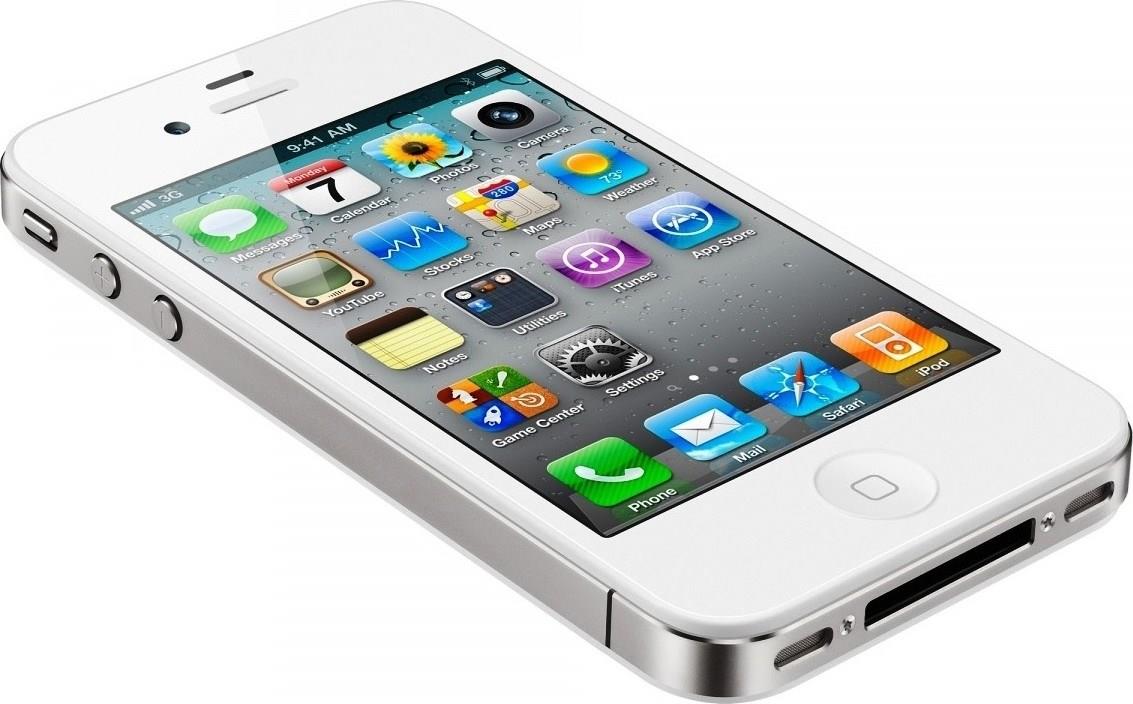
    The iPhone 4, evolutionary rather than revolutionary, has had users reporting signal strength problems since its launch. It continues to sell well, despite what appears a big flaw and Apple refusing to be helpful.

    Let’s have a quick run down of what’s happened since the iPhone 4 launch on the 24th June.

    (more…)

  • TomTom – remembering existing customers

    Earlier in the year I purchased a years worth of HD Traffic service from TomTom. More recently they’ve made the decision to half the price of this service.

    Now, paying up front, most people would accept that this is the cost of buying up-front and wouldn’t expect that existing customers would feel the benefit until they purchase more in a years time. Except, TomTom, haven’t forgotten the customer and have added a free months extra HD Traffic to their subscription for every month remaining on their existing one – essentially a 50% reduction (without them having to give refunds).

    Hats off to TomTom for that.

  • Weekend PC Woes

    Over the weekend I took the opportunity to upgrade my PC to make it a bit more energy efficient and quieter. The rubbish generic PSU was replaced by a higher spec branded model and the graphics card was removed, so the on-board GPU would take over instead.

    Now, what then went wrong I don’t know. But after this the ethernet refused to work  (sadly its built into the motherboard) and, a few reboots later, I was getting reports of corrupt system files.  And what else might now be failing?

    Which has given me the excuse to replace my PC after all these years – it was getting a bit long-in-the-tooth and for a dedicated geek, my insistence of hanging onto Windows XP was looking a bit suspect.

    It’s now been ordered, and I’ve ordered some extra goodies as well (I need an HDMI to DVI converter to be able to connect the new PC to my monitor and I’ve also ordered a SATA dock for easily copying my old drive). To keep with the quiet, efficient theme, I’ve order a Dell Zino HD.

    Initially, I was looking at the basic model but with an HD and memory upgrade (1TB and 4GB respectively). However, after finding some benchmarks for the 2 available processors, I decided to upgrade this – the basic processor is an AMD 3250e, with a passmark score of 824, compared to the AMD 6850e with a score of 1911.

    But, I was curious – they also let you “spec up” a more advanced model, which already many of the upgrades that I was after. As it turned out, £70 more will get you a Blu-Ray drive, 6GB memory, a separate graphics card (rather than the on-board model) and wireless. I can see how Dell manage to get more money out of the customer, as I plumped for this!

    It also runs Windows 7 64-bit, so I can now look forward to finding out which hardware doesn’t work with it 😉

    As soon as it turns up, expect a thorough review!