Tag: Apple

  • MacBook – one year on

    MacBook – one year on

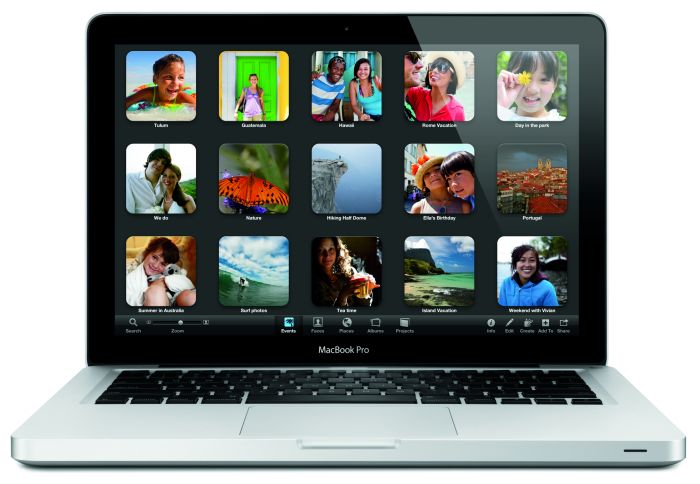
    So, a year ago I was looking for a new laptop. I’ve always been a Windows user but was tired on the quality of past laptops which would fall apart far too quickly after purchase.

    Now, I could have gone for a high quality Windows laptop but, let’s be honest, putting a metal case on a laptop doesn’t ensure quality. Macbook’s on the other hand are known for it – tried and tested. And I was “up” for trying out a different OS. So a 2012 refresh Macbook Pro 15″ (non-retina) was mine. I did weigh up whether to spend the extra on the retina version but decided against it – I’m still happy with that decision.

    So, a year later, how has it gone?
    (more…)

  • The iPhone 5s and the Foil Hat Brigade

    The iPhone 5s and the Foil Hat Brigade

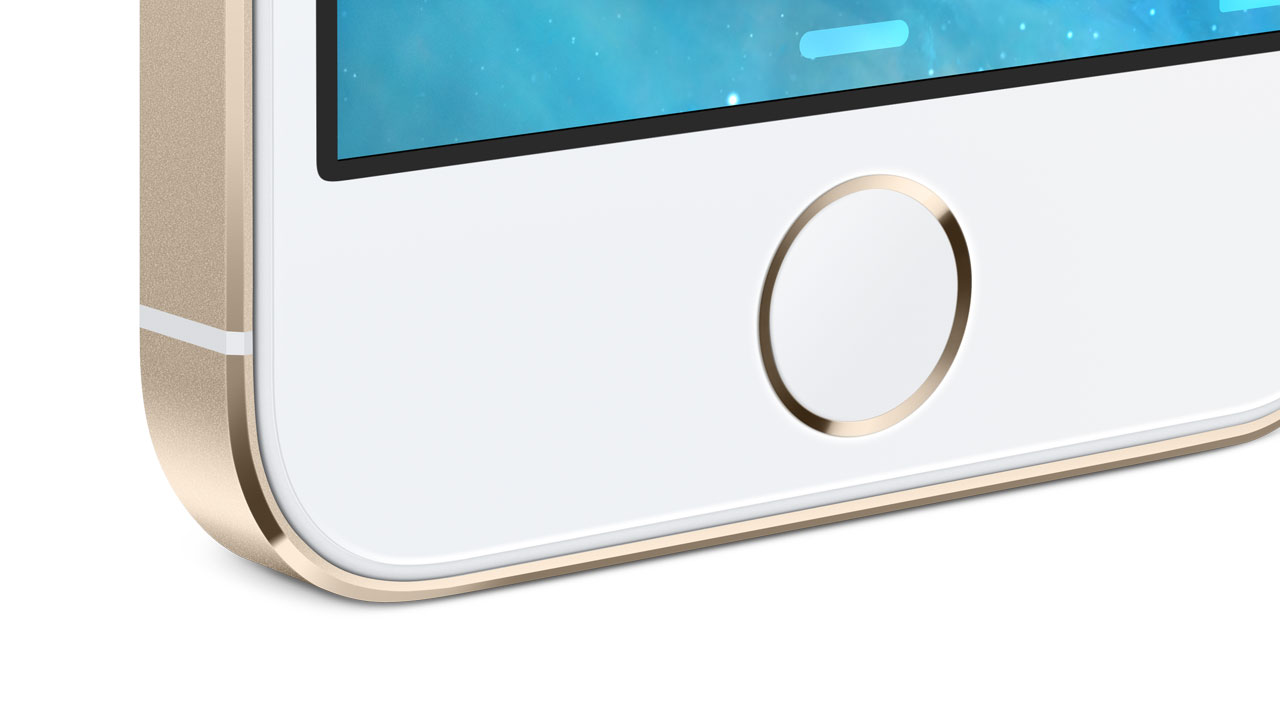
    Since the iPhone 5s was announced, complete with its fingerprint detector, comments have been awash with people assuming that using it will mean your fingerprints reported back to the NSA. The fact that Apple have said otherwise seems to hold no sway – the fingerprint data is held on the phone and is never sent anywhere else, they say.

    (more…)

  • Rory Cellan-Jones – is he biased?

    Rory Cellan-Jones – is he biased?

    It would appear that whenever Rory Cellan-Jones, technology correspondent for the BBC, posts any new articles he immediately gets accused of being Apple biased. What’s the evidence? Let’s look at his most recent articles for the BBC.

    (more…)

  • Apple iPad Mini vs Google Nexus 7

    Apple iPad Mini vs Google Nexus 7

    I own neither and own both Apple and Android products, so I think it’s time for a side-by-side factual comparison of these recently launched tablets…

    (more…)
  • How to modify start applications in OS X Mountain Lion

    Skype doesn’t launch with OS X and doesn’t appear to have an option, unlike many other programs, to do this.

    However, after some searching I did find a reference to user preferences that allow you to modify which programs start with the system. Unfortunately, these were not 100% correct for Mountain Lion, so it still took me some trial and error to find the correct process. Here’s what you do…

    • Press  and select “System Preferences”
    • Click on “Users & Groups” (bottom left, in the “System” section)
    • The current user should be highlighted on the left. To the right, select the “Login Items” tab
    • It now lists all the applications that start when the system does. Those ticked will be hidden (click on the screenshot at the side to see my screen)
    • Press the + and – button to add and remove applications. To add Skype simply press + and select it from the Applications list.